 DashFox
Read the offer, verify the pickup, follow the customer's delivery instructions, then complete the correct drop-off flow. Don't mark a step finished before you've actually done it. If the order, address or app prompt doesn't match, stop and resolve it rather than guessing.
This US-focused guide assumes your Dasher account is approved and covers an ordinary restaurant delivery. Shopping, alcohol and multiple-order offers can add requirements; your actual app's instructions control. DoorDash flags details such as Red Card needs, alcohol and multiple orders on the offer screen. [2]
Before you start: make the phone the easy part
Our suggestion: charge your phone, bring a charger, set up navigation while parked and have a way to carry food and drinks securely. Check that you have the equipment needed for the jobs you intend to take.
In the Dasher app, use the available start option or your scheduled dash. “Dash Now” depends on availability in your area; it isn't a promise that you can go online at any moment. The Schedule tab handles future dashes. [1]
Find Help before the first order, not during a stressful drop-off. DoorDash provides in-app support both during a delivery and outside a dash. [3] [8] Menu placement can change, so follow the options your version shows.
1. Read the job before tapping Accept
Check the offered pay, distance, destination and type of work. DoorDash's offer-screen guidance identifies guaranteed pay as the minimum shown, including base pay and customer tips; the final amount may be higher. It also describes the “deliver by” time and special-order icons. [2]
For a first outing, we recommend choosing work you understand and can complete—not accepting a complicated job just to make the phone stop ringing. Don't confuse declining a new offer with unassigning a job you've already accepted; our acceptance-rate guide explains the difference.
Suppose the offer is $9.75 for 6.8 miles, with 23 minutes to the deliver-by time. The sample DashFox-style bubble turns that into an hourly projection and a per-mile figure.
The hourly arithmetic is $9.75 ÷ 23 × 60. It's a quick offer comparison, not a promise of what you'll earn for a whole shift. Restaurant waits, your actual trip and an unpaid drive back can change the result; gas, wear and taxes aren't deducted.
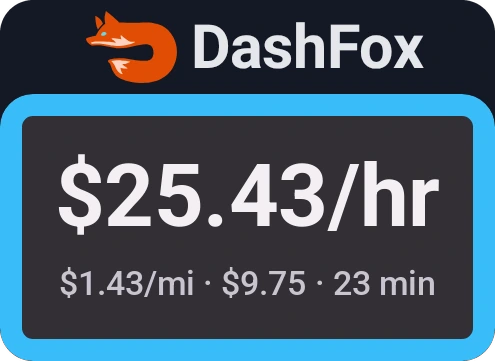
Want to practise before heading out? Put a made-up offer into the offer calculator. Set a target that makes sense for you rather than treating the example's colour as a universal rule.
2. At pickup: match the order, not just the restaurant
Follow the merchant instructions in the app. Tell staff you're picking up a DoorDash order and provide the customer's name; DoorDash's new-Dasher guide describes that basic pickup conversation. [3] Before leaving, confirm with staff that you have the right order and any separate items or drinks.
Don't open a sealed bag to check it. DoorDash says to verify the name and contents with restaurant staff instead. [4] A sealed bag isn't a reason to skip checking the label or asking whether another bag is coming.
Use the pickup confirmation when the handover is actually complete. If the food isn't ready, ask for a realistic update and use the app's issue/help options. Our restaurant-wait guide covers the wait-versus-unassign decision; don't assume there is a universal penalty-free timer.
3. Read the destination notes before driving
While safely stopped, review the address, unit, access notes and handoff request. DoorDash recommends previewing delivery instructions while waiting for the order, and its drop-off guidance says to check details such as intercom and floor information. [3] [5]
Our practical check: does the address you can verify match the stop you're about to make? A navigation pin is a cue to check the location, not a reason to ignore a different street number or unit. If the location is unclear, call or message the customer through the app. [5]
4. Finish the drop-off that was actually requested
“Leave at my door” or no-contact
Follow the delivery notes and use the app's completion steps. Place the order at the agreed location and submit the requested delivery photo. Make the food and its location clear: a doorway or other identifying surroundings, adequate light and a sharp image—not just a close-up of the bag. [4] [5]
If the customer takes the food before the photo, use the actual-handoff option when your app offers it and follow the remaining prompts. Don't choose “handed directly” just to avoid taking a required photo. DoorDash says that option is for a real handover. [4]
“Hand it to me”
Hand the order to the customer and complete that flow. If you can't reach them, don't improvise a no-contact drop-off. DoorDash's published path is Help → Drop-off issues → Reached drop-off location → Can't reach customer; then contact the customer and follow the timer and instructions the app gives you. [6]
When the timer ends, the app may direct you to leave and document the order if a return isn't required. Follow the actual prompt; don't invent a fixed wait length or assume everything can be left outside. Alcohol must not be left unattended, and the app directs return or disposal for those orders. [6] See the separate alcohol-delivery guide before taking that type of job.
If the app won't let you finish
DoorDash says pickup or completion errors can appear when it detects that you're too far from the relevant location. Double-check the actual address and the warning, then follow the appropriate in-app option. If you're at the correct place and still stuck, use the prompts to explain the situation or contact Support. [7]
Don't solve a confusing screen by declaring a pickup or delivery that hasn't happened. Get the order state and the real-world handover to agree.
5. After the order: review, then reset
DoorDash's Earnings tab lets you review earnings and previous dashes. [1] For your own learning, note the actual trip time, distance and any avoidable confusion while safely stopped. One awkward pickup is useful feedback—not enough evidence to rank every restaurant in town.
Our first-dash goal: complete a manageable delivery correctly, know where Help is and learn one thing to do more smoothly next time. Once the workflow feels familiar, the miles-and-time guide can help you compare offers without mistaking gross pay for profit.
Quick questions
Why can't I tap Dash Now?
DoorDash says immediate dashing depends on availability in your area. Check the Schedule tab and the actual eligibility or availability message in your app rather than assuming every approved account can start anywhere at any time. [1]
Should I open the bag to make sure everything is there?
Not a sealed bag. Confirm the customer name and contents with restaurant staff, including any separate items. DoorDash explicitly says not to open sealed packaging to check it. [4]
What if the customer doesn't answer?
The no-contact and hand-to-customer flows differ. For a hand-to-customer order, use the can't-reach-customer help flow and follow its contact, timer, documentation and return instructions. Don't replace that process with a guessed wait time. [6]
Does every delivery work like this?
No. This is an ordinary restaurant-delivery walkthrough. The offer may include multiple orders, alcohol or Red Card requirements, and the app can add steps. Read the flags before accepting and follow the job-specific instructions. [2]
Keep reading
 Your toolkit
Apps for DoorDash drivers
Choose the missing part of your toolkit, not just a “best app” label.
 Delivery help
Wrong DoorDash delivery address?
Clarify the destination, location warning or no-response problem before guessing the next step.
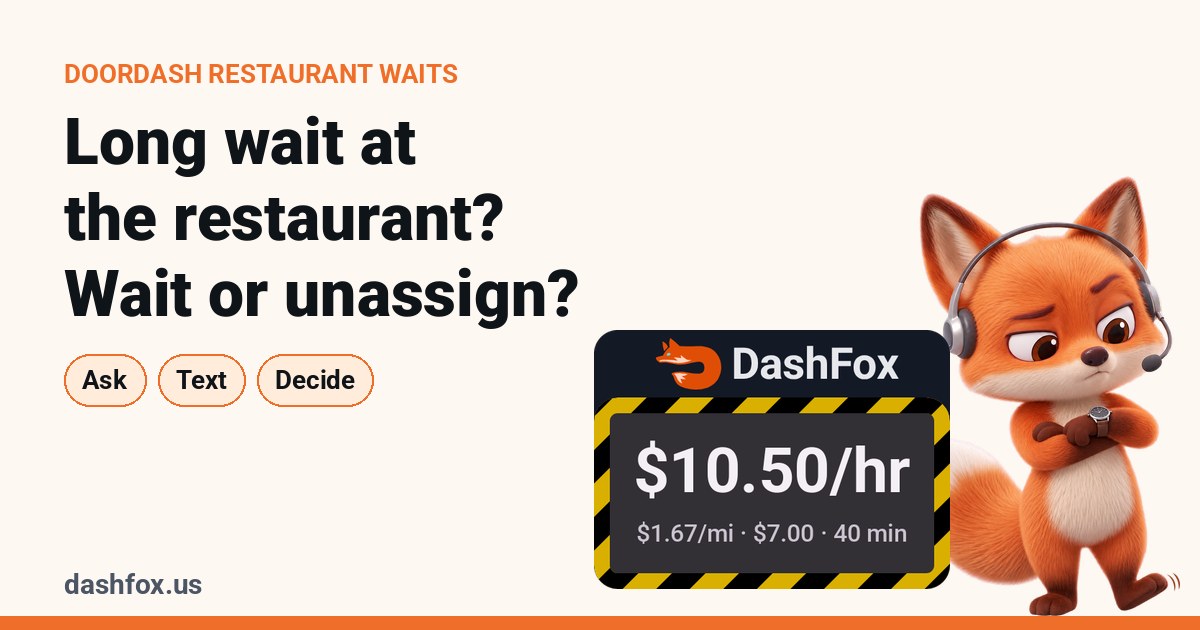 On the job
Long wait at the restaurant?
What waiting costs, and why unassigning is a different decision from declining.
Sources
- DoorDash Help: Dasher App Overview. Availability, Schedule and Earnings tabs. Checked November 6, 2026.
- DoorDash Help: Redesigned Accept Modal. Guaranteed pay, deliver-by information and special-order flags. Checked November 6, 2026.
- DoorDash Help: The New Dasher Guide. Basic restaurant identification, previewing delivery instructions and on-delivery Help. Checked November 6, 2026. Its legacy timer, kit, prepaid-order and pandemic claims are not treated here as universal current rules.
- DoorDash Help: No-Contact Delivery Requests. Sealed bags, delivery photos and the actual-handoff option. Checked November 6, 2026.
- DoorDash Help: Confirming Delivery Drop-off Photos. Delivery notes, customer contact and useful photo details. Checked November 6, 2026.
- DoorDash Help: Customer unavailable. Hand-to-customer exception flow, timer, documentation, return and alcohol boundaries. Checked November 6, 2026.
- DoorDash Help: Can't mark order picked up or complete. Location warnings, actual-address checks and support. Checked November 6, 2026.
- DoorDash Help: Chat Support in the Dasher App. Support outside an active dash. Checked November 6, 2026.
A practical guide, not a first-person delivery story, a recording of the current app or an earnings promise. Button wording and extra steps can vary; use the instructions on your actual job. The offer bubble is constructed Example data, rendered with the existing DashFox-style offer renderer. Its colours are illustrative, not a universal acceptance rule.